

This is the point-and-click path for the Claude desktop app (Cowork / Claude Code on the desktop). Instead of running /plugin commands, you add Halyard’s marketplace and enable the plugin from the Customize panel. For developers who prefer to wire up a single client through the UI.
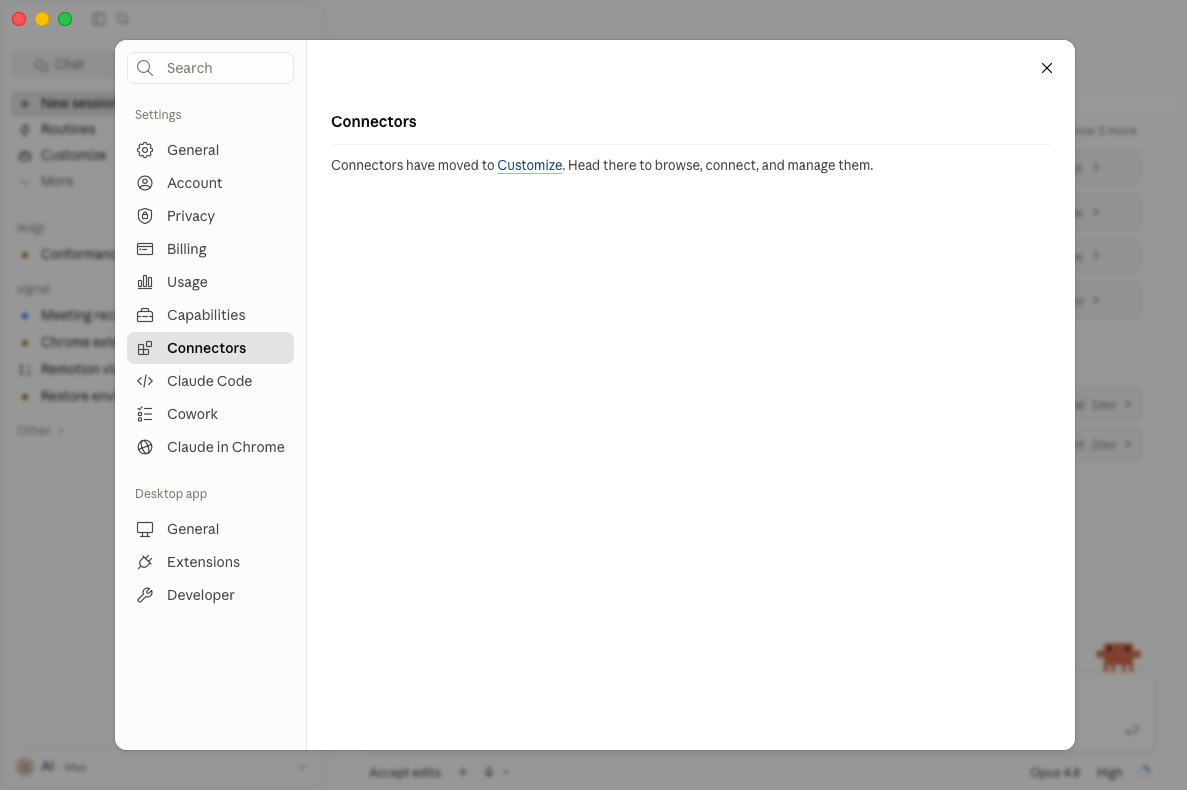
1. Open Connectors, then Customize
Section titled “1. Open Connectors, then Customize”Open Settings → Connectors. Connectors now live under Customize — follow the link there to browse, connect, and manage plugins.
2. Add the marketplace from a repository
Section titled “2. Add the marketplace from a repository”In Customize → Connectors, click the + to add a marketplace, then choose Add from a repository to sync a plugin marketplace from a GitHub repository.
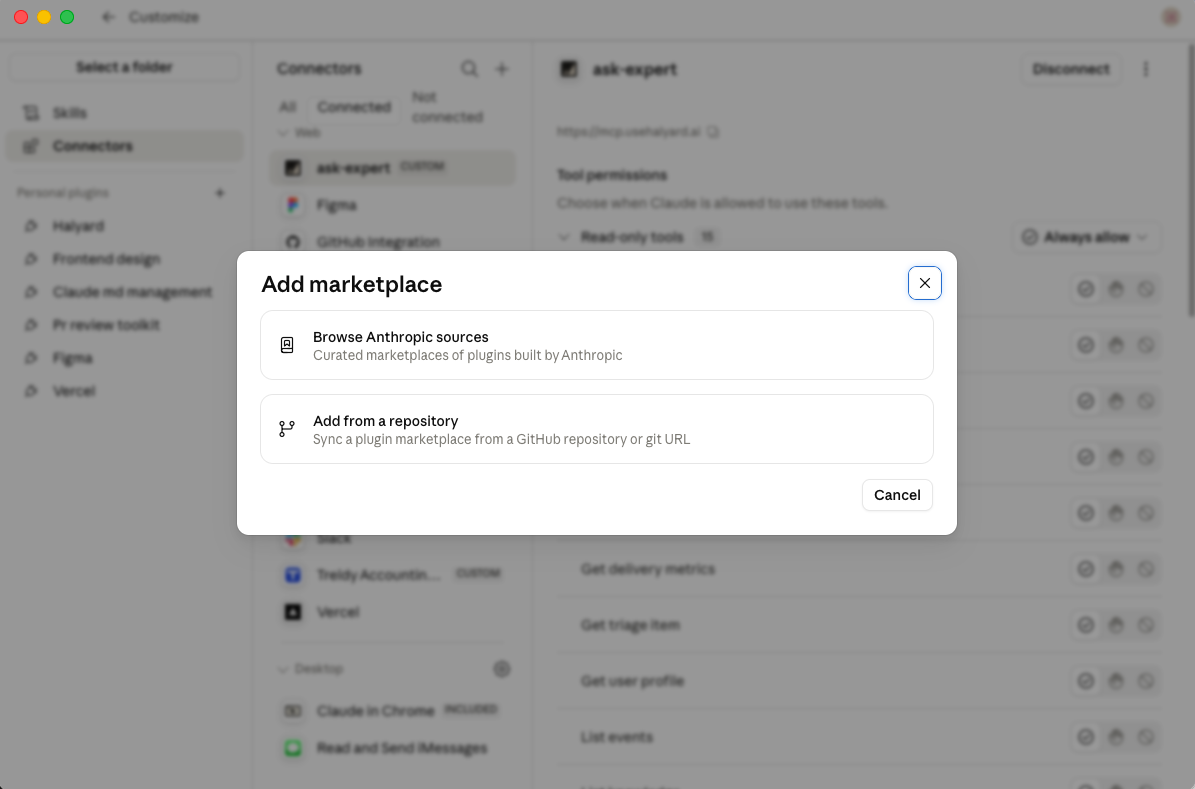
Enter Halyard’s marketplace repository as the URL and click Sync:
halyard-labs/claude-plugin-marketplace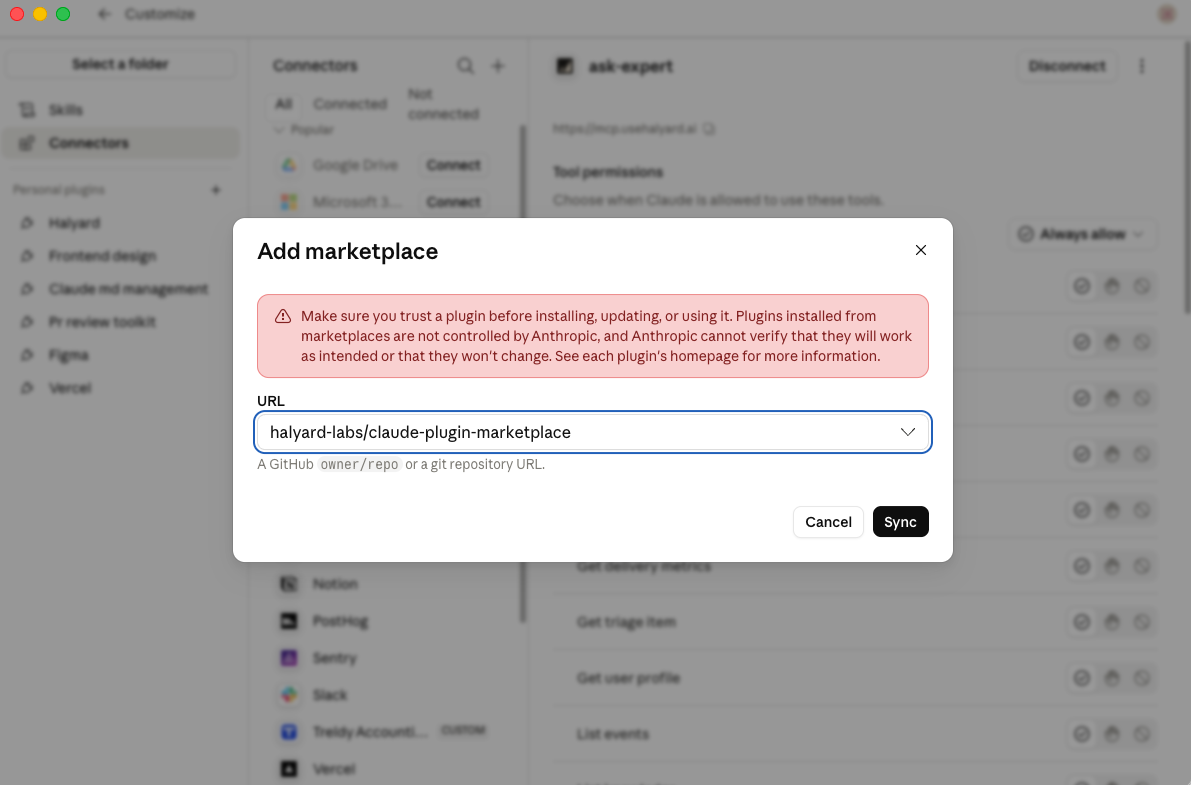
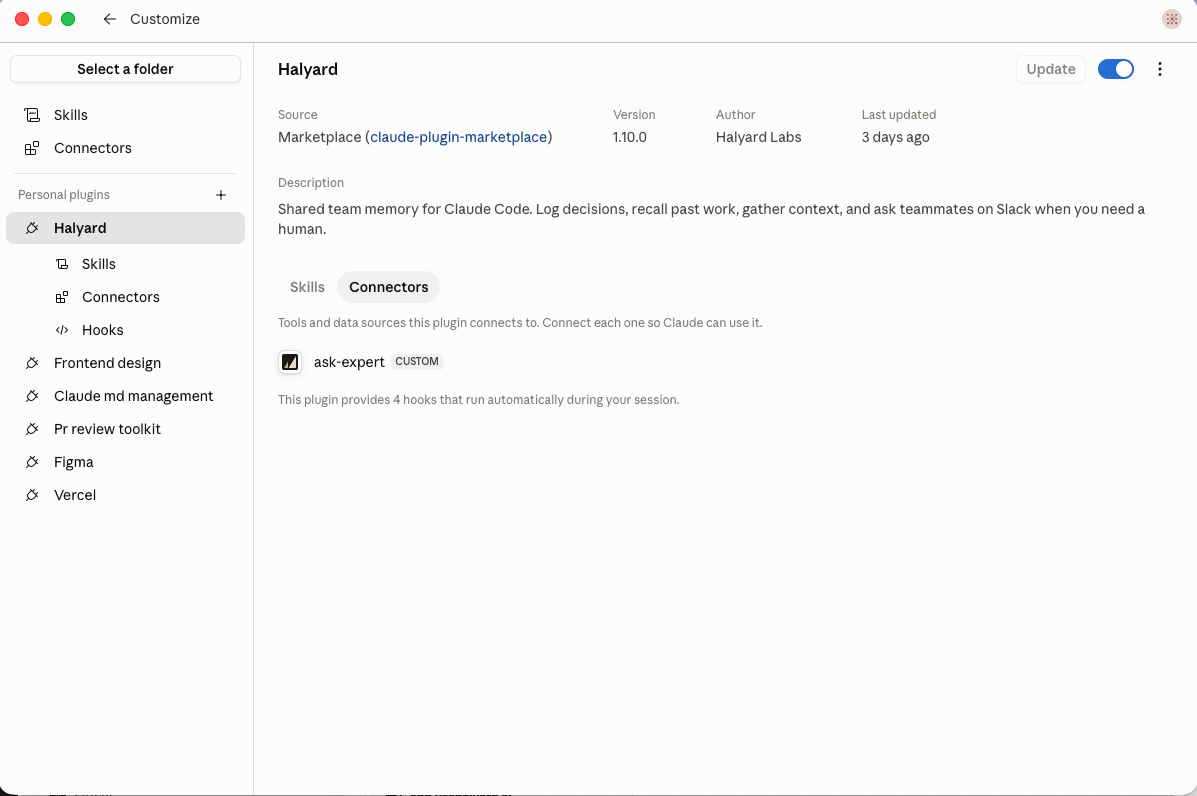
3. Enable the Halyard plugin and connect its tools
Section titled “3. Enable the Halyard plugin and connect its tools”The Halyard plugin now appears under Personal plugins. Make sure it’s toggled on, then open its Connectors tab and connect each tool so Claude can use it — including the org-kb connector that routes questions to a human and captures the answer.
Authorize
Section titled “Authorize”The first time Claude calls a Halyard tool, it opens a browser to authorize against your Halyard account. Approve it once; the bearer token is then attached to every request.
Verify
Section titled “Verify”Ask the agent to identify you and run a search:
Use Halyard to tell me who I am, then search the knowledge base for our most recent decision.Expect a whoami call returning your user and organization, followed by a search_knowledge call. If the tools do not appear, see Troubleshooting.